Introduction
There is a trap that every Arch Linux and DWM user falls into: the Neovim configuration black hole.
You start by wanting a simple terminal text editor. Two weeks later, you have a 2,000-line init.lua file, your LSP is crashing, and you haven’t written a single line of actual project code.
Now comes the real part: Getting a fully functional, terminal-based IDE without building it from scratch.
This blog explains how to use LazyVim. It is a setup driven by the lazy.nvim package manager that gives you syntax highlighting, auto-completion, file exploration, and git integration out of the box.
Minimal bloat, maximum speed, and zero configuration guilt.
Credits (Important)
Before anything else:
- folke – the creator of LazyVim and half the plugins you use anyway.
- neovim core team – for making terminal editing viable in the modern era.
Without these tools, we would all be forced to use VS Code or suffer in plain Vi.
What This Setup Installs
By running one clone command, you get:
- A pure black, high-contrast colorscheme (tokyonight).
- Telescope (fuzzy finder for files and text).
- Mason (automated installer for Language Server Protocols like Rust, Go, Python).
- Which-key (a popup that tells you what your keybinds are so you do not have to memorize them).
- Neo-tree (a sidebar file explorer).
It boots in under 50 milliseconds.
Prerequisites
- Arch Linux (or your Termux setup from the previous guide)
- Neovim >= 0.9.0 (
sudo pacman -S neovim) - Git, Make, GCC
- Ripgrep (
sudo pacman -S ripgrep- required for Telescope fuzzy finding) - A Nerd Font installed in your terminal (like JetBrains Mono Nerd Font)
Step 1: Nuke Your Old Config
If you have an existing, broken Neovim config, back it up or delete it.
# Backup existing files
mv ~/.config/nvim ~/.config/nvim.bak
mv ~/.local/share/nvim ~/.local/share/nvim.bak
mv ~/.local/state/nvim ~/.local/state/nvim.bak
mv ~/.cache/nvim ~/.cache/nvim.bak
Start with a clean slate.
Step 2: Clone the LazyVim Starter
Do not reinvent the wheel. Pull the official starter template.
git clone [https://github.com/LazyVim/starter](https://github.com/LazyVim/starter) ~/.config/nvim
Remove the .git folder so you can version control it as your own dotfile later:
rm -rf ~/.config/nvim/.git
Step 3: First Boot
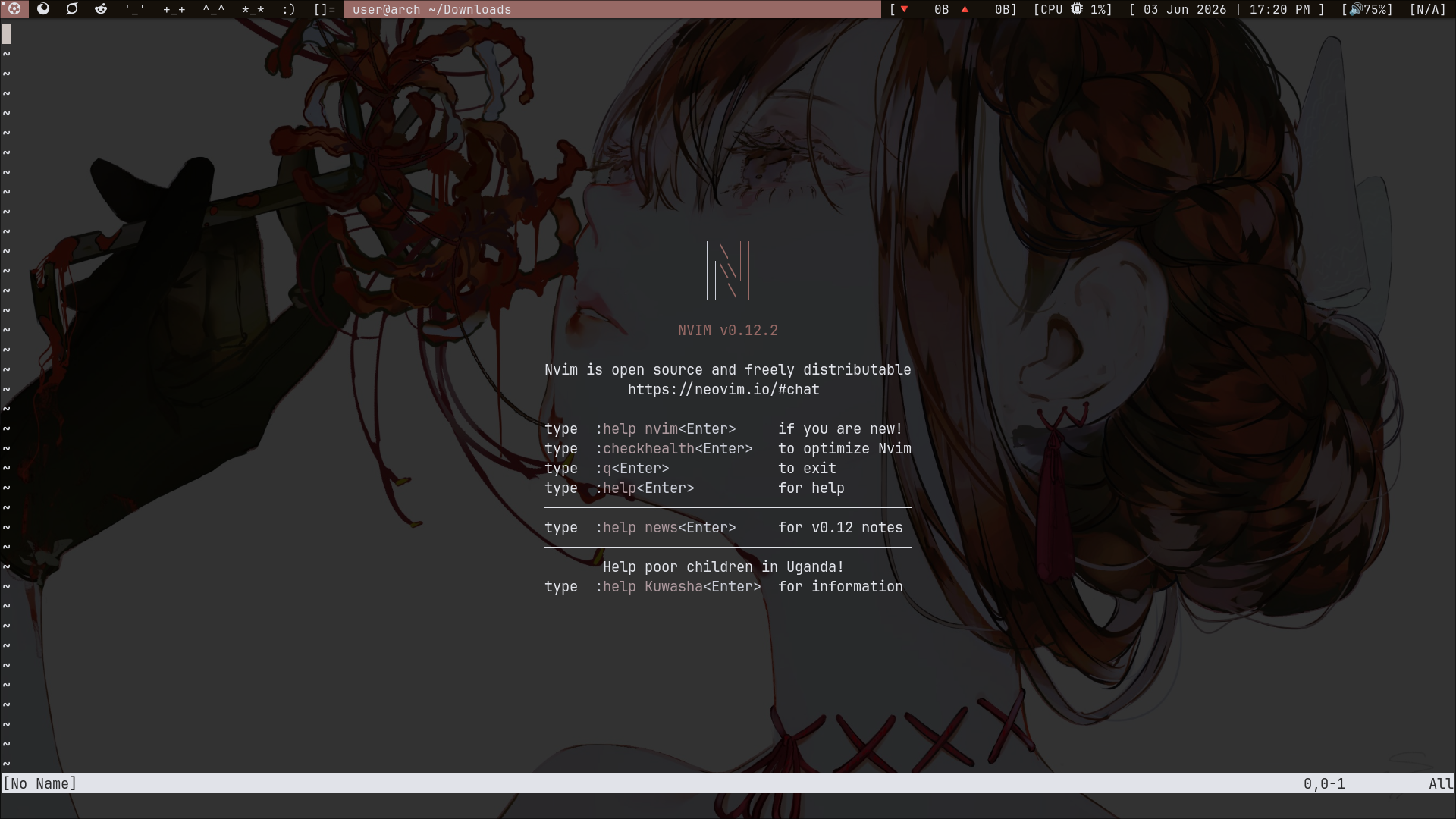
Open Neovim:
nvim .
Do not press anything. Lazy.nvim will automatically read the config, download all the required plugins, and compile them. This takes about 30 seconds depending on your internet connection.
Step 4: Install Your Language Servers
LazyVim uses Mason to manage compilers and formatters.
Inside Neovim, type:
:Mason
This opens a GUI in your terminal.
Press i to install the servers you need for your stack:
rust-analyzer(for Rust)pyright(for Python)typescript-language-server(for Next.js/TS)gopls(for Go)
Close Mason with q. You now have IDE-level autocomplete and error checking.
Common Issues
- Weird box characters: You forgot to install a Nerd Font, or your terminal (st) is not configured to use it.
- Telescope is slow/crashing: Ensure you installed
ripgrepandfdvia pacman. - Keybinds feel weird: Press the
Spacebar and wait 1 second. A menu will pop up showing you every available command. Space is your leader key.
Conclusion
Setting up a development environment should not be a development project in itself.
LazyVim bridges the gap between the raw speed of a terminal editor and the feature completeness of heavy IDEs, without the RAM tax.
Personal Opinion
I am an engineer, not a text-editor artisan. This exists so I can drop into a server or my local environment, type
nvim, and immediately start fixing bugs. Letting someone else maintain my editor config is the smartest, laziest decision I have ever made.