Introduction
After running Linux on Android using Termux + proot in CLI mode, the next obvious question is:
Can we run a proper Linux desktop GUI on Android?
Short answer: Yes.
Long answer: Yes, but don’t expect desktop-level performance.
In this blog, we’ll set up a Linux GUI on Android using VNC, without root, without flashing, and without permanent system changes.
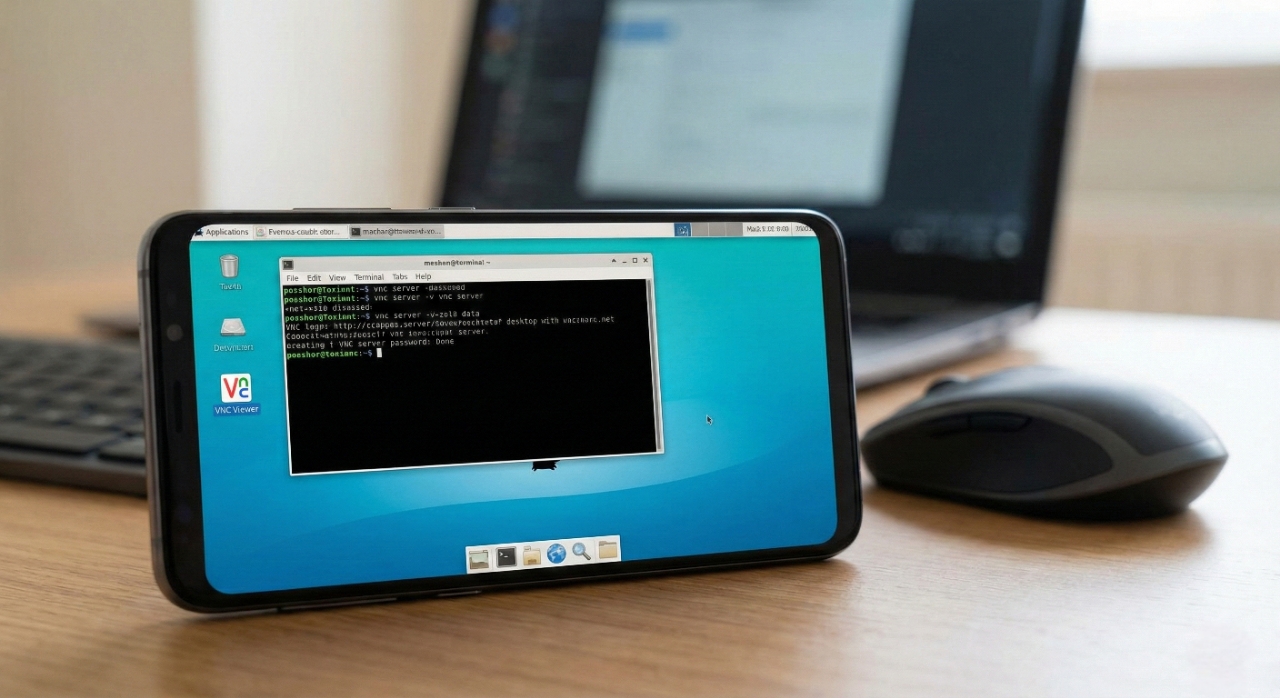
How Linux GUI Works on Android
Android doesn’t support Linux display servers directly, so the workaround is:
- Run a VNC server inside Linux
- Create a virtual display
- Access it using a VNC Viewer app
Everything runs in user space, so it’s safe but limited.
Prerequisites
- Linux installed via
proot-distro - Minimum 3–4 GB free storage
- Device with at least 4 GB RAM recommended
- VNC Viewer app (Play Store / F-Droid)
Step 1: Login to Linux
Open Termux and login:
proot-distro login ubuntu
Step 2: Install Desktop Environment
We’ll use XFCE because it’s lightweight and stable.
apt update
apt install xfce4 xfce4-goodies -y
Installation takes time — phone ko thoda struggle karne do.
Step 3: Install VNC Server
Install TigerVNC:
apt install tigervnc-standalone-server tigervnc-common -y
Set VNC password:
vncpasswd
Step 4: Configure VNC Startup
Create startup file:
nano ~/.vnc/xstartup
Paste this:
#!/bin/sh
unset SESSION_MANAGER
unset DBUS_SESSION_BUS_ADDRESS
exec startxfce4 &
Make it executable:
chmod +x ~/.vnc/xstartup
Step 5: Start VNC Server
Start server on display :1
vncserver :1
Expected output:
New 'X' desktop is localhost:1
Step 6: Connect Using VNC Viewer
On Android:
- Open VNC Viewer
- Create new connection
- Address:
localhost:5901 - Enter password
Desktop should load in few seconds.
Recommended VNC Settings
For smoother experience:
- Resolution: 1280x720 or lower
- Color depth: Medium / Low
- Disable animations inside XFCE
Lag kam hoga thoda.
Performance Expectations
Let’s be honest:
- Not smooth like PC
- Touch input feels awkward
- Heavy apps will struggle
But for learning, experimenting, and basic tasks — it works.
Common Problems & Fixes
Black screen
- Check
~/.vnc/xstartuppermissions - Restart VNC server
Very slow GUI
- Lower resolution
- Close background apps
Connection failed
- Ensure port is
5901 - Restart VNC server
Safety & Precautions
- Never expose VNC to public networks
- Stop VNC when not in use:
vncserver -kill :1 - Avoid running heavy GUI apps
- This is experimental, not a daily driver
Conclusion
Running Linux GUI on Android using VNC is more of a learning experiment than a productivity setup.
It’s slow, but impressive, and great for understanding how Linux desktops work.
Personal Opinion
I tried this mostly for curiosity, and yeah, it works — but expectations low rakho.
Would I replace my laptop with this? Definitely not. But as a pocket Linux lab, it’s pretty cool.
Try it once, learn something new, then decide.