Installing TWRP Custom Recovery Without a PC
Once you’ve unlocked your bootloader, the next step in Android customization is installing a custom recovery. TWRP (Team Win Recovery Project) is the most widely used recovery for flashing ROMs, Magisk, and creating backups. This guide walks you through installing TWRP on your device without the need for a computer.
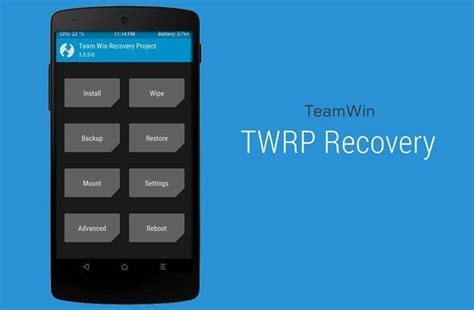
What is TWRP Recovery?
TWRP is a touch-based custom recovery that replaces your device’s stock recovery. It allows for advanced actions such as:
- Flashing ZIPs (ROMs, Magisk, kernels, mods)
- Creating/restoring full backups (Nandroid)
- Wiping specific partitions (Cache, Dalvik, Data, etc.)
- Mounting internal storage and ADB sideloading
- File Manager, Terminal access, and more
Pros and Cons of Using TWRP
Pros:
- Full control over your system partition and root access
- Ability to flash custom ROMs and Magisk for rooting
- Advanced troubleshooting and repair tools
- On-device backup and restore with ease
Cons:
- Replaces your stock recovery, which may affect OTA updates
- Some devices might lose Widevine L1 (DRM) or face bootloop if improperly flashed
- Needs careful flashing—wrong paths can soft brick your device
Prerequisites
Before You Begin:
- Bootloader must be unlocked
- Your device must be rooted (preferably with Magisk)
- Downloaded TWRP
.imgfile for your exact device model - At least 50% battery
- Terminal emulator (like Termux) or official TWRP app installed
Steps to Install TWRP Without PC
1️⃣ Step 1: Download the TWRP Image
Get the .img file for your device from a trusted source. Ensure it matches your device’s codename and version.
2️⃣ Step 2: Rename and Move
Rename the file to twrp.img and place it in your internal storage’s root directory (not inside any folder) or /sdcard.
3️⃣ Step 3: Launch Terminal & Gain Root Access
Open a terminal emulator (like Termux) and enter:
su
4️⃣ Step 4: Flash TWRP Image to Recovery Partition
Use the following command:
fastboot flash recovery twrp.img
Important: The recovery partition path may vary based on your device. Double-check it before flashing.
5️⃣ Step 5: Reboot into Recovery
Immediately reboot to recovery after flashing:
reboot recovery
Or use your device’s key combo (usually Power + Volume Up).
Verifying TWRP Installation
When your device boots into recovery, you should see the TWRP interface. From here, you can:
- Flash custom ROMs or Magisk
- Perform backups (Nandroid)
- Wipe cache, data, or system
- Use file manager or terminal for tweaks
Troubleshooting Tips
- If TWRP reverts back to stock recovery, flash a disable encryption or DM-Verity zip after installing TWRP.
- Flashing fails? Double-check the recovery partition path.
- Some devices may not support this method and require fastboot.
Conclusion
Installing TWRP without a PC is a powerful trick for rooted users. It’s a convenient way to gain full control over your phone’s software. With TWRP installed, your Android device is now ready for custom ROMs, root, mods, and more. 🔧